<?xml version="1.0" encoding="utf-8"?><feed xmlns="http://www.w3.org/2005/Atom" ><generator uri="https://jekyllrb.com/" version="3.10.0">Jekyll</generator><link href="http://gtrifonov.com/feed.xml" rel="self" type="application/atom+xml" /><link href="http://gtrifonov.com/" rel="alternate" type="text/html" /><updated>2024-12-13T01:27:43+00:00</updated><id>http://gtrifonov.com/feed.xml</id><title type="html">George Trifonov Blog</title><subtitle>Work, Coding, and Life</subtitle><entry><title type="html">Secure Decommissioning of IoT Devices: Lessons from Recycling my home MXChip Development Board project</title><link href="http://gtrifonov.com/2024/12/12/secure-decommissioning-of-iot-device/index.html" rel="alternate" type="text/html" title="Secure Decommissioning of IoT Devices: Lessons from Recycling my home MXChip Development Board project" /><published>2024-12-12T00:00:00+00:00</published><updated>2024-12-12T00:00:00+00:00</updated><id>http://gtrifonov.com/2024/12/12/secure-decommissioning-of-iot-device/Secure-Decommissioning-of-IoT-Device</id><content type="html" xml:base="http://gtrifonov.com/2024/12/12/secure-decommissioning-of-iot-device/index.html"><![CDATA[<p><strong>Secure Decommissioning of IoT Devices: Lessons from Recycling my home MXChip Development Board project</strong></p>

<p>The rise of IoT (Internet of Things) devices has revolutionized industries and personal lifestyles, making connectivity ubiquitous. However, the rapid proliferation of these devices also introduces significant security challenges, particularly during their decommissioning. Improper handling of IoT devices at the end of their lifecycle can expose sensitive data, create security vulnerabilities, and compromise user trust.</p>

<p>This article examines a specific case: recycling MXChip IoT development boards. During this process, I discovered that even after reflashing the firmware, residual secrets, such as Wi-Fi credentials, remained accessible in the device’s non-volatile memory. I initially intended to donate a board for use in someone’s IoT project but found that the device still retained my Wi-Fi network name and password in memory. Alarmingly, even after reflashing, the board attempted to use these secrets to connect to my home network. This finding highlights the critical importance of implementing robust security hygiene for decommissioning IoT devices. Below, we explore best practices and technical strategies to ensure safe decommissioning.</p>

<h3 id="understanding-the-security-risks"><strong>Understanding the Security Risks</strong></h3>

<p>IoT devices often store sensitive information in non-volatile memory, including:</p>

<ul>
  <li><strong>Wi-Fi credentials</strong></li>
  <li><strong>API keys and access tokens</strong></li>
  <li><strong>Encryption keys</strong></li>
  <li><strong>User data and preferences</strong></li>
</ul>

<p>These secrets are essential for device functionality but pose significant risks if improperly erased. Attackers gaining access to this data could infiltrate networks, impersonate devices, or retrieve confidential user information. This is particularly concerning in devices like the MXChip, where reflashing firmware does not automatically clear memory secrets.</p>

<h3 id="key-challenges-in-iot-device-decommissioning"><strong>Key Challenges in IoT Device Decommissioning</strong></h3>

<ol>
  <li><strong>Persistent Memory Storage</strong>: Many IoT devices use flash memory, EEPROM, or similar storage types designed to retain data even during power loss.</li>
  <li><strong>Insufficient Factory Reset Mechanisms</strong>: Built-in reset features may not wipe all sensitive data, leaving critical secrets vulnerable.</li>
  <li><strong>Complex Data Recovery Risks</strong>: Data recovery tools can retrieve deleted information if the memory hasn’t been securely overwritten.</li>
</ol>

<h3 id="best-practices-for-secure-iot-decommissioning"><strong>Best Practices for Secure IoT Decommissioning</strong></h3>

<h4 id="1-identify-stored-secrets"><strong>1. Identify Stored Secrets</strong></h4>
<p>Before decommissioning, identify all types of sensitive data stored on the device. For MXChip boards, this includes:</p>

<ul>
  <li>Network credentials (SSID and passwords)</li>
  <li>Application-specific credentials (e.g., IoT Hub connection strings)</li>
  <li>Device-specific configurations</li>
</ul>

<h4 id="2-implement-secure-erasure-techniques"><strong>2. Implement Secure Erasure Techniques</strong></h4>
<p>Secure erasure ensures that all sensitive data is unrecoverable:</p>

<ul>
  <li><strong>Full Memory Overwrite</strong>: Use firmware tools or custom scripts to overwrite all memory with random data. For MXChip boards, this involves wiping internal flash memory and other accessible storage.</li>
  <li><strong>Data Scrubbing Algorithms</strong>: Employ secure wiping algorithms like those outlined in NIST Special Publication 800-88 (e.g., multiple passes of random or zeroed data).</li>
</ul>

<h4 id="3-avoid-relying-on-reflashing-alone"><strong>3. Avoid Relying on Reflashing Alone</strong></h4>
<p>While reflashing firmware replaces the application code, it does not guarantee the erasure of secrets stored in separate memory areas. Complement reflashing with explicit memory wipe processes.</p>

<h4 id="4-validate-device-erasure"><strong>4. Validate Device Erasure</strong></h4>
<p>After performing the erasure:</p>

<ul>
  <li><strong>Test for Residual Data</strong>: Attempt to read the memory to verify that sensitive data is no longer accessible.</li>
  <li><strong>Perform Forensic Checks</strong>: Use data recovery tools to ensure no retrievable data remains.</li>
</ul>

<h4 id="5-physical-destruction-when-necessary"><strong>5. Physical Destruction (When Necessary)</strong></h4>
<p>If secure erasure is not feasible, physical destruction may be the best option for highly sensitive devices. For MXChip boards, this might involve drilling through the memory chips or using shredding tools to render the hardware inoperable.</p>

<h4 id="6-establish-decommissioning-protocols"><strong>6. Establish Decommissioning Protocols</strong></h4>
<p>For organizations managing large fleets of IoT devices, create standardized procedures:</p>

<ul>
  <li><strong>Document Processes</strong>: Outline steps for secure erasure and physical disposal.</li>
  <li><strong>Train Personnel</strong>: Ensure technical teams understand decommissioning best practices.</li>
  <li><strong>Use Automation</strong>: Implement scripts or management tools to simplify and scale secure wiping processes.</li>
</ul>

<h4 id="7-consider-secure-bootloaders"><strong>7. Consider Secure Bootloaders</strong></h4>
<p>In future development, opt for hardware with secure bootloaders that support authenticated firmware updates and secure data wiping mechanisms.</p>

<h3 id="case-study-mxchip-decommissioning"><strong>Case Study: MXChip Decommissioning</strong></h3>

<p>During the recycling of MXChip development boards, I discovered that Wi-Fi SSIDs and passwords persisted in non-volatile memory even after reflashing. To address this:</p>

<ol>
  <li><strong>Analyzed Memory Architecture</strong>: I mapped out memory regions storing secrets.</li>
  <li><strong>Developed a Wipe Script</strong>: Initially, I used old firmware to override secrets with empty strings. While this approach worked to some extent, the proper technique would involve a dedicated script specifically designed to securely wipe out all sensitive data from memory.</li>
  <li><strong>Validated the Wipe</strong>: I used a firmware to validate that no sensitive data remained.</li>
</ol>

<p>This process underscored the importance of treating decommissioning as a technical, security-critical task rather than an afterthought.</p>

<h3 id="conclusion"><strong>Conclusion</strong></h3>

<p>The decommissioning of IoT devices, such as the MXChip development board, requires careful attention to detail and adherence to security best practices. By identifying stored secrets, implementing secure erasure techniques, and validating data removal, individuals and organizations can mitigate the risks associated with device recycling and disposal.</p>

<p>The lessons learned from this case extend beyond MXChip boards to the broader IoT ecosystem. With billions of connected devices in use today, secure decommissioning is not just a best practice – it’s a necessity for safeguarding digital ecosystems.</p>]]></content><author><name></name></author><category term="IoT" /><category term="Security" /><category term="MXCHIP" /><category term="embedded" /><category term="best" /><category term="practices" /><summary type="html"><![CDATA[Secure Decommissioning of IoT Devices: Lessons from Recycling my home MXChip Development Board project]]></summary></entry><entry><title type="html">GitHub Pages - test from long years of blogging pause</title><link href="http://gtrifonov.com/2023/08/04/test-blog-resume/index.html" rel="alternate" type="text/html" title="GitHub Pages - test from long years of blogging pause" /><published>2023-08-04T00:00:00+00:00</published><updated>2023-08-04T00:00:00+00:00</updated><id>http://gtrifonov.com/2023/08/04/test-blog-resume/test-blog-resume</id><content type="html" xml:base="http://gtrifonov.com/2023/08/04/test-blog-resume/index.html"><![CDATA[<h2 id="welcome-back-from-years-of-blog-silence">Welcome back from years of blog silence.</h2>

<p>Test post to see if Jekyll engine is still running. Let’s see if it can genereate test post from github.</p>]]></content><author><name></name></author><category term="jekyll" /><category term="gitpages" /><category term="blogging" /><summary type="html"><![CDATA[Welcome back from years of blog silence.]]></summary></entry><entry><title type="html">Hosting and deploying a static website to Azure. Using azure storage account and github actions</title><link href="http://gtrifonov.com/2023/08/04/hosting-static-web-site-in-azure/index.html" rel="alternate" type="text/html" title="Hosting and deploying a static website to Azure. Using azure storage account and github actions" /><published>2023-08-04T00:00:00+00:00</published><updated>2023-08-04T00:00:00+00:00</updated><id>http://gtrifonov.com/2023/08/04/hosting-static-web-site-in-azure/Hosting-Static-Web-site-in-azure</id><content type="html" xml:base="http://gtrifonov.com/2023/08/04/hosting-static-web-site-in-azure/index.html"><![CDATA[<p>Before going into details of how to configure static web site in azure let’s list why static web sites might be an option for your project.</p>

<p>Benefits and Key Scenarios of Using Static Websites:</p>

<p><strong>Benefits:</strong></p>

<ol>
  <li>
    <p><strong>Cost-Efficiency:</strong> Static websites are extremely cost-effective to host and maintain. They don’t require server-side processing, which reduces hosting expenses.</p>
  </li>
  <li>
    <p><strong>High Performance:</strong> Static sites load quickly since there’s no server-side processing. This results in faster page load times and a better user experience.</p>
  </li>
  <li>
    <p><strong>Security:</strong> With no server-side components or databases, the attack surface is reduced, making static websites less vulnerable to security threats.</p>
  </li>
  <li>
    <p><strong>Scalability:</strong> Static sites can easily handle high traffic loads because content is served from a content delivery network (CDN), distributing it globally.</p>
  </li>
  <li>
    <p><strong>Simplicity:</strong> Creating and maintaining static websites is straightforward. There’s no need for complex databases or server setups.</p>
  </li>
  <li>
    <p><strong>Version Control:</strong> You can manage static site content with version control systems like Git, enabling easy collaboration and rollbacks.</p>
  </li>
  <li>
    <p><strong>SEO-Friendly:</strong> Search engines can crawl static sites efficiently, leading to better search engine optimization (SEO) potential.</p>
  </li>
</ol>

<p>Static websites offer a wide range of benefits and are particularly well-suited for scenarios where content is relatively stable and the focus is on fast loading times, simplicity, and cost savings. They’re a versatile solution for various web projects, from personal blogs to documentation portals and marketing pages.</p>

<p>Hosting and deploying a static website in an Azure Storage Account and integrating it with GitHub Actions involves several steps. Below is a step-by-step tutorial to help you achieve this:</p>

<p><strong>Prerequisites:</strong></p>
<ol>
  <li>An Azure account. If you don’t have one, you can create a free account at <a href="https://azure.com/free">Azure Portal</a>.</li>
  <li>A GitHub account and a repository containing your static website code.</li>
  <li><a href="https://docs.microsoft.com/en-us/cli/azure/install-azure-cli">Azure CLI</a> installed on your local machine.</li>
  <li><a href="https://github.com/features/actions">GitHub Actions</a> enabled for your GitHub repository.</li>
</ol>

<p><strong>Step 1: Create an Azure Storage Account</strong></p>
<ol>
  <li>Log in to your Azure portal.</li>
  <li>Click on “Create a resource” and search for “Storage Account.”</li>
  <li>Click on “Storage account - blob, file, table, queue.”</li>
  <li>Fill in the required information, including the subscription, resource group, storage account name, and region. Leave the other settings as default.</li>
  <li>Click “Review + create,” and then click “Create” to create the storage account.</li>
</ol>

<p><strong>Step 2: Enable Static Website Hosting in Azure Storage</strong></p>
<ol>
  <li>After the storage account is created, go to its settings.</li>
  <li>In the left sidebar, under “Settings,” click on “Static website.”</li>
  <li>Toggle the “Static website” switch to “Enabled.”</li>
  <li>Set the “Index document name” (e.g., <code class="language-plaintext highlighter-rouge">index.html</code>) and optionally, the “Error document path.”</li>
  <li>Click “Save.”</li>
</ol>

<p><strong>Step 3: Configure Azure Storage Account for Static Website Deployment</strong></p>
<ol>
  <li>In the storage account settings, go to “Access keys” and note down one of the connection strings (either key1 or key2).</li>
</ol>

<p><strong>Step 4: Set up GitHub Repository</strong></p>
<ol>
  <li>Push your static website code to a GitHub repository if you haven’t already.</li>
  <li>Create a <code class="language-plaintext highlighter-rouge">.github/workflows</code> directory in your repository if it doesn’t exist.</li>
  <li>Inside the <code class="language-plaintext highlighter-rouge">.github/workflows</code> directory, create a YAML file (e.g., <code class="language-plaintext highlighter-rouge">deploy.yml</code>) to define your GitHub Actions workflow. Here’s an example workflow file:</li>
</ol>

<div class="language-yaml highlighter-rouge"><div class="highlight"><pre class="highlight"><code><span class="na">name</span><span class="pi">:</span> <span class="s">Deploy to Azure Storage</span>

<span class="na">on</span><span class="pi">:</span>
  <span class="na">push</span><span class="pi">:</span>
    <span class="na">branches</span><span class="pi">:</span>
      <span class="pi">-</span> <span class="s">main</span>

<span class="na">jobs</span><span class="pi">:</span>
  <span class="na">build-and-deploy</span><span class="pi">:</span>
    <span class="na">runs-on</span><span class="pi">:</span> <span class="s">ubuntu-latest</span>

    <span class="na">steps</span><span class="pi">:</span>
    <span class="pi">-</span> <span class="na">name</span><span class="pi">:</span> <span class="s">Checkout code</span>
      <span class="na">uses</span><span class="pi">:</span> <span class="s">actions/checkout@v2</span>

    <span class="pi">-</span> <span class="na">name</span><span class="pi">:</span> <span class="s">Set up Node.js</span>
      <span class="na">uses</span><span class="pi">:</span> <span class="s">actions/setup-node@v2</span>
      <span class="na">with</span><span class="pi">:</span>
        <span class="na">node-version</span><span class="pi">:</span> <span class="s1">'</span><span class="s">14'</span>

    <span class="pi">-</span> <span class="na">name</span><span class="pi">:</span> <span class="s">Install dependencies</span>
      <span class="na">run</span><span class="pi">:</span> <span class="s">npm install</span>

    <span class="pi">-</span> <span class="na">name</span><span class="pi">:</span> <span class="s">Build</span>
      <span class="na">run</span><span class="pi">:</span> <span class="s">npm run build</span> <span class="c1"># Replace with your build command</span>

    <span class="pi">-</span> <span class="na">name</span><span class="pi">:</span> <span class="s">Deploy to Azure Storage</span>
      <span class="na">env</span><span class="pi">:</span>
        <span class="na">AZURE_STORAGE_CONNECTION_STRING</span><span class="pi">:</span> <span class="s">$</span>
      <span class="na">run</span><span class="pi">:</span> <span class="pi">|</span>
        <span class="s">az storage blob upload-batch --destination '$web' --source ./build --connection-string $AZURE_STORAGE_CONNECTION_STRING</span>
</code></pre></div></div>

<p><strong>Step 5: Set GitHub Secrets</strong></p>
<ol>
  <li>In your GitHub repository, go to “Settings” &gt; “Secrets.”</li>
  <li>Click on “New repository secret” and create a secret named <code class="language-plaintext highlighter-rouge">AZURE_STORAGE_CONNECTION_STRING</code>. Set its value to the Azure Storage Account connection string you noted down in Step 3.</li>
</ol>

<p><strong>Step 6: Deploy via GitHub Actions</strong></p>
<ol>
  <li>Commit and push the <code class="language-plaintext highlighter-rouge">deploy.yml</code> file to your GitHub repository.</li>
  <li>GitHub Actions will automatically run when you push changes to the main branch, build your website, and deploy it to the Azure Storage Account.</li>
</ol>

<p><strong>Step 7: Access Your Deployed Website</strong></p>
<ol>
  <li>Once the GitHub Actions workflow completes successfully, your static website will be deployed to Azure Storage.</li>
  <li>You can access it using the Azure Storage Account’s static website endpoint, which you can find in the “Static website” section of the storage account settings.</li>
</ol>

<p>That’s it! You’ve successfully hosted and deployed your static website in an Azure Storage Account and integrated the deployment process with GitHub Actions. Any future pushes to your main branch will trigger automatic deployments.</p>]]></content><author><name></name></author><category term="azure" /><category term="hosting" /><category term="static" /><category term="websites" /><category term="blogging" /><summary type="html"><![CDATA[Before going into details of how to configure static web site in azure let’s list why static web sites might be an option for your project.]]></summary></entry><entry><title type="html">Streamlining Your Coding Experience with VSCode.dev</title><link href="http://gtrifonov.com/2023/08/04/testing-vscode-dev/index.html" rel="alternate" type="text/html" title="Streamlining Your Coding Experience with VSCode.dev" /><published>2023-08-04T00:00:00+00:00</published><updated>2023-08-04T00:00:00+00:00</updated><id>http://gtrifonov.com/2023/08/04/testing-vscode-dev/testing-vscode-dev</id><content type="html" xml:base="http://gtrifonov.com/2023/08/04/testing-vscode-dev/index.html"><![CDATA[<p>What you gonna do when you don’t have access to your computer but want to change couple lines of code in github repository using familiar vscode experience. I found that browser based vscode.dev expreience often good enough to do basic tasks. and below is chatgpt article how you can do it. I need to save my library time since my session will expire in 15 minutes :)</p>

<p>In the realm of coding, efficiency and accessibility are paramount. Developers are constantly seeking tools and features that streamline their workflow, enabling them to write better code in less time. One such tool that has garnered significant attention is VSCode.dev, a browser-based version of Visual Studio Code. This online platform empowers developers to seamlessly integrate external libraries into their projects directly from within the browser environment.</p>

<h3 id="what-is-vscodedev">What is VSCode.dev?</h3>

<p>VSCode.dev is a browser-based version of Visual Studio Code that provides a convenient interface for coding, collaborating, and managing projects entirely online. It offers many of the familiar features and functionalities of the desktop version of VSCode, allowing developers to code from anywhere with an internet connection.</p>

<h3 id="how-to-access-vscodedev">How to Access VSCode.dev</h3>

<p>Accessing VSCode.dev is straightforward:</p>

<ol>
  <li>
    <p><strong>Open Your Browser</strong>: Launch your preferred web browser on your machine.</p>
  </li>
  <li>
    <p><strong>Navigate to VSCode.dev</strong>: Enter “https://vscode.dev/” into the address bar and press Enter.</p>
  </li>
  <li>
    <p><strong>Start Coding</strong>: Once the VSCode.dev website loads, you’ll be presented with a familiar coding environment similar to the desktop version of Visual Studio Code.</p>
  </li>
</ol>

<h3 id="using-vscodedev-for-coding">Using VSCode.dev for Coding</h3>

<p>Now that you’re in the VSCode.dev environment, let’s explore how you can leverage its features to enhance your coding experience:</p>

<ol>
  <li>
    <p><strong>Code in the Cloud</strong>: Write, edit, and debug your code entirely within the browser environment. VSCode.dev provides a fully functional code editor with syntax highlighting, IntelliSense, and debugging capabilities.</p>
  </li>
  <li>
    <p><strong>Access to Extensions</strong>: VSCode.dev comes pre-installed with many popular extensions, allowing you to enhance your coding experience with additional functionalities such as Git integration, language support, and more.</p>
  </li>
  <li>
    <p><strong>Integrate External Libraries</strong>: Use VSCode.dev’s built-in features to seamlessly integrate external libraries into your projects. You can search for libraries, view detailed information, and incorporate them into your code directly from within the browser environment.</p>
  </li>
  <li>
    <p><strong>Collaboration Tools</strong>: Collaborate with teammates in real-time by sharing your VSCode.dev workspace. You can work together on the same codebase, making it easier to collaborate on projects regardless of physical location.</p>
  </li>
  <li>
    <p><strong>Save and Sync</strong>: VSCode.dev automatically saves your work as you code, ensuring that you never lose progress. Additionally, if you sign in with a Microsoft account, you can sync your settings, preferences, and extensions across devices for a consistent coding experience.</p>
  </li>
  <li>
    <p><strong>Accessibility</strong>: Since VSCode.dev is browser-based, you can access it from any device with an internet connection, making it convenient for coding on the go or on devices where installing desktop software is not possible.</p>
  </li>
</ol>

<h3 id="conclusion">Conclusion</h3>

<p>VSCode.dev is a powerful tool that simplifies the process of coding and collaborating online. By providing a familiar coding environment accessible from any web browser, VSCode.dev enables developers to write code, integrate libraries, and collaborate with teammates seamlessly. Whether you’re working on a personal project, collaborating with a team, or simply coding on the go, leveraging VSCode.dev can significantly enhance your coding experience and productivity.</p>]]></content><author><name></name></author><category term="vscode" /><category term="remote" /><category term="codding" /><category term="websites" /><category term="blogging" /><summary type="html"><![CDATA[What you gonna do when you don’t have access to your computer but want to change couple lines of code in github repository using familiar vscode experience. I found that browser based vscode.dev expreience often good enough to do basic tasks. and below is chatgpt article how you can do it. I need to save my library time since my session will expire in 15 minutes :) In the realm of coding, efficiency and accessibility are paramount. Developers are constantly seeking tools and features that streamline their workflow, enabling them to write better code in less time. One such tool that has garnered significant attention is VSCode.dev, a browser-based version of Visual Studio Code. This online platform empowers developers to seamlessly integrate external libraries into their projects directly from within the browser environment. What is VSCode.dev? VSCode.dev is a browser-based version of Visual Studio Code that provides a convenient interface for coding, collaborating, and managing projects entirely online. It offers many of the familiar features and functionalities of the desktop version of VSCode, allowing developers to code from anywhere with an internet connection. How to Access VSCode.dev Accessing VSCode.dev is straightforward: Open Your Browser: Launch your preferred web browser on your machine. Navigate to VSCode.dev: Enter “https://vscode.dev/” into the address bar and press Enter. Start Coding: Once the VSCode.dev website loads, you’ll be presented with a familiar coding environment similar to the desktop version of Visual Studio Code. Using VSCode.dev for Coding Now that you’re in the VSCode.dev environment, let’s explore how you can leverage its features to enhance your coding experience: Code in the Cloud: Write, edit, and debug your code entirely within the browser environment. VSCode.dev provides a fully functional code editor with syntax highlighting, IntelliSense, and debugging capabilities. Access to Extensions: VSCode.dev comes pre-installed with many popular extensions, allowing you to enhance your coding experience with additional functionalities such as Git integration, language support, and more. Integrate External Libraries: Use VSCode.dev’s built-in features to seamlessly integrate external libraries into your projects. You can search for libraries, view detailed information, and incorporate them into your code directly from within the browser environment. Collaboration Tools: Collaborate with teammates in real-time by sharing your VSCode.dev workspace. You can work together on the same codebase, making it easier to collaborate on projects regardless of physical location. Save and Sync: VSCode.dev automatically saves your work as you code, ensuring that you never lose progress. Additionally, if you sign in with a Microsoft account, you can sync your settings, preferences, and extensions across devices for a consistent coding experience. Accessibility: Since VSCode.dev is browser-based, you can access it from any device with an internet connection, making it convenient for coding on the go or on devices where installing desktop software is not possible. Conclusion VSCode.dev is a powerful tool that simplifies the process of coding and collaborating online. By providing a familiar coding environment accessible from any web browser, VSCode.dev enables developers to write code, integrate libraries, and collaborate with teammates seamlessly. Whether you’re working on a personal project, collaborating with a team, or simply coding on the go, leveraging VSCode.dev can significantly enhance your coding experience and productivity.]]></summary></entry><entry><title type="html">GitHub Pages - run Jekyll using Docker container and deploy it using Azure Container Instances</title><link href="http://gtrifonov.com/2018/04/19/test-github-pages-preview-jekyll-using-docker/index.html" rel="alternate" type="text/html" title="GitHub Pages - run Jekyll using Docker container and deploy it using Azure Container Instances" /><published>2018-04-19T00:00:00+00:00</published><updated>2018-04-19T00:00:00+00:00</updated><id>http://gtrifonov.com/2018/04/19/test-github-pages-preview-jekyll-using-docker/test-github-pages-preview-jekyll-using-docker</id><content type="html" xml:base="http://gtrifonov.com/2018/04/19/test-github-pages-preview-jekyll-using-docker/index.html"><![CDATA[<p>Recently i migrate my blog to github pages which using <a href="https://github.com/jekyll/jekyll">Jekyll</a> engine under a hood to convert markdown files to html and generate static site. After 12 years of hosting blog,  i found that i don’t really need any server side execution or storing any data inputs it dbs. My blog simple static web site and serving static content make most sense from page load time perspective.
Beauty of github pages is that i can use familiar tools to publish my posts and git push work perfectly for me. One thing i wanted to have is to ability to stage content in develop branch, test it and maybe publish after few iterations of updates.</p>

<p>Github pages are using Jekyll for content generation and i had to install ruby enviroment on my local box to generate content locally and do some testing . I also wants to have ability to deploy it to cloud and preview it when its using fully qualified domain name. So to avoid dev dependencies i choose to have docker image which i can run in any devbox and create simple pipline to deploy blog to azure from my develop github branch before merging changes to master.</p>

<p>You can find docker file in my github with instructions and i am simply including copy o <a href="https://github.com/gtrifonov/docker-jekyll-serve/blob/master/README.md">Readme.md</a> from this repo:
<a href="https://github.com/gtrifonov/docker-jekyll-serve">https://github.com/gtrifonov/docker-jekyll-serve</a></p>

<h2 id="running-your-jekyll-site-locally-and-deploying-to-azure-container-service">Running your jekyll site locally and deploying to Azure Container Service</h2>

<p>Building and running container locally. Change docker-compose.yml file to insert your git repo url an change container name, branch, ports if needed.</p>

<blockquote>
  <p><code class="language-plaintext highlighter-rouge">docker-compose up -d --build</code></p>
</blockquote>

<p>Lookup logs locally and at this point you can preview your website locally</p>

<blockquote>
  <p><code class="language-plaintext highlighter-rouge">docker logs {LOCAL_CONTAINER_NAME} --follow</code></p>
</blockquote>

<p>Assuming you have your azure registry created this command will publish image. You don’t need to rebuild image and publish image with every new blog post (git push)</p>

<blockquote>
  <p><code class="language-plaintext highlighter-rouge">docker push {YOUR_REGISTRY_FQDN}/jekyll-serve:latest</code></p>
</blockquote>

<p>Create container instance in azure</p>

<blockquote>
  <p><code class="language-plaintext highlighter-rouge">az container create --resource-group {YOUR_RESOURCE_GROUP} --name {YOUR_CONTAINER_NAME} --image {YOUR_REGISTRY_FQDN}/jekyll-serve --cpu 1 --memory 1 --registry-username {YOUR_USERNAME} --registry-password {YOUR_PASSWORD} --dns-name-label {YOUR_SUBDOMAIN} --ports 80</code></p>
</blockquote>

<p>See a status of your container</p>

<blockquote>
  <p>` az container logs –resource-group {YOUR_RESOURCE_GROUP} –name {YOUR_CONTAINER_NAME} –follow`</p>
</blockquote>

<p>Once testing is done you can delete container to free resources</p>

<blockquote>
  <p><code class="language-plaintext highlighter-rouge">az container delete --resource-group {YOUR_RESOURCE_GROUP} --name {YOUR_CONTAINER_NAME}</code></p>
</blockquote>]]></content><author><name></name></author><category term="jekyll" /><category term="docker" /><category term="azure" /><summary type="html"><![CDATA[Recently i migrate my blog to github pages which using Jekyll engine under a hood to convert markdown files to html and generate static site. After 12 years of hosting blog, i found that i don’t really need any server side execution or storing any data inputs it dbs. My blog simple static web site and serving static content make most sense from page load time perspective. Beauty of github pages is that i can use familiar tools to publish my posts and git push work perfectly for me. One thing i wanted to have is to ability to stage content in develop branch, test it and maybe publish after few iterations of updates.]]></summary></entry><entry><title type="html">Running azure cli on Raspberry Pi using docker containers</title><link href="http://gtrifonov.com/2018/04/17/runningazureclionpi/index.html" rel="alternate" type="text/html" title="Running azure cli on Raspberry Pi using docker containers" /><published>2018-04-17T00:00:00+00:00</published><updated>2018-04-17T00:00:00+00:00</updated><id>http://gtrifonov.com/2018/04/17/runningazureclionpi/RunningAzureCLIonPI</id><content type="html" xml:base="http://gtrifonov.com/2018/04/17/runningazureclionpi/index.html"><![CDATA[<p>Few days ago i was playing with my Pi 2 and wanted to execute <a href="https://github.com/Azure/azure-cli">Azure CLI 2.0</a> commands to deploy some containers to Azure Container Registry. I knew i probably had to compile cli source code to target arm proccesor. 
I found that azure cli git-hub repository doesn’t have proper build script support for arm target. I filled Bug <a href="https://github.com/Azure/azure-cli/issues/6092">6092</a> and started to modified build scripts. After some altering i made it working, but when it striked me  - why just not use docker arm image and replicate cli docker file instructions.</p>

<p>So below is instructions how to run azure cli on raspberry Pi using docker containers.</p>

<h2 id="prepare-your-raspbery-pi-and-run-azure-cli">Prepare your Raspbery PI and run Azure CLI</h2>

<h3 id="install-git-and-docker">Install Git and Docker</h3>

<h4 id="git-installation-command">Git installation command</h4>

<p><code class="language-plaintext highlighter-rouge">sudo apt-get install git</code></p>

<h4 id="docker-installation-command">Docker installation command</h4>

<p><code class="language-plaintext highlighter-rouge">curl -sSL https://get.docker.com | sh</code></p>

<h3 id="clone-and-build-repository">Clone and Build repository</h3>

<p><code class="language-plaintext highlighter-rouge">sudo git clone https://github.com/gtrifonov/raspberry-pi-alpine-azure-cli.git</code></p>

<p><code class="language-plaintext highlighter-rouge">cd .\raspberry-pi-alpine-azure-cli</code></p>

<p><code class="language-plaintext highlighter-rouge">sudo docker build . -t azure-cli</code></p>

<p>This will build docker image with title ‘azure-cli’</p>

<h3 id="running-commands-in-docker-image">Running commands in docker image</h3>

<h4 id="starting-docker-container-in-demon-mode-and-giving-it-name-cli">Starting Docker container in demon mode and giving it name ‘cli’</h4>

<p><code class="language-plaintext highlighter-rouge">sudo docker run -d -it --rm --name cli azure-cli</code></p>

<p>Docker container running as demon with bash shell opened</p>

<h4 id="verifiying-that-container-running">Verifiying that container running</h4>

<p><code class="language-plaintext highlighter-rouge">sudo docker ps</code></p>

<p>Output</p>

<table>
  <thead>
    <tr>
      <th>CONTAINER ID</th>
      <th>IMAGE</th>
      <th>COMMAND</th>
      <th>CREATED</th>
      <th>STATUS</th>
      <th>PORTS</th>
      <th>NAMES</th>
    </tr>
  </thead>
  <tbody>
    <tr>
      <td>17c2e621f9b4</td>
      <td>azure-cli</td>
      <td>“/usr/bin/entry.sh /…”</td>
      <td>49 seconds ago</td>
      <td>Up 46 seconds</td>
      <td> </td>
      <td>cli</td>
    </tr>
  </tbody>
</table>

<h4 id="executing-command-login-to-azure">Executing command login to azure</h4>

<p>Since docker container is running and waiting any command to be executed you can use docker exec command.
Command below will execute azure cli login.</p>

<p><code class="language-plaintext highlighter-rouge">sudo docker exec cli az login</code></p>

<p>Once you logged in please use <a href="https://docs.microsoft.com/en-us/cli/azure/reference-index?view=azure-cli-latest">Azure Cli command refference</a> to see available commands and there parameters</p>]]></content><author><name></name></author><summary type="html"><![CDATA[Few days ago i was playing with my Pi 2 and wanted to execute Azure CLI 2.0 commands to deploy some containers to Azure Container Registry. I knew i probably had to compile cli source code to target arm proccesor. I found that azure cli git-hub repository doesn’t have proper build script support for arm target. I filled Bug 6092 and started to modified build scripts. After some altering i made it working, but when it striked me - why just not use docker arm image and replicate cli docker file instructions.]]></summary></entry><entry><title type="html">Streaming live video from Rasspberry pi to Azure Media Services</title><link href="http://gtrifonov.com/2015/07/02/streaming-live-video-from-raspberrypi-to-azure-media-services/index.html" rel="alternate" type="text/html" title="Streaming live video from Rasspberry pi to Azure Media Services" /><published>2015-07-02T00:00:00+00:00</published><updated>2015-07-02T00:00:00+00:00</updated><id>http://gtrifonov.com/2015/07/02/streaming-live-video-from-raspberrypi-to-azure-media-services/streaming-live-video-from-raspberrypi-to-azure-media-services</id><content type="html" xml:base="http://gtrifonov.com/2015/07/02/streaming-live-video-from-raspberrypi-to-azure-media-services/index.html"><![CDATA[<p>Few weeks ago I bought raspberry PI 2 Model B to my elder kid to encourage him to program something and start hacking.
    And as it often happens I also started to explore new toy and its capabilities. Since I am working in Azure Media
    services as developer, first project I actually started to implement myself is building security camera which will
    stream live video through Azure Media Services. I can look what&#8217;s happening around my house from work or from
    any place where I have access to internet. Looking into device specs and browsing similar projects I concluded that
    I should be able to archive my goals relatively fast and I started with hacking.</p>
<h1>Hardware</h1>
<ul>
    <li>Raspberry PI 2 Model B</li>
    <li>SD Card 16 GB</li>
    <li>Microsoft LifeCam 6000/ Raspberry PI Camera module</li>
    <li>USB wifi adapter if you don&#8217;t have wired Ethernet connection</li>
    <li>Keyboard (optional)</li>
    <li>Mouse(optional)</li>
    <li>Monitor(optional)</li>
</ul>
<p>You don&#8217;t actually need to plugin monitor, keyboard , mouse if you planning to access your PI from your computer
    via SSH.
    <br/> You can use either a usb camera or Raspberry PI Camera module. You should get better results with Raspberry PI Camera
    module since it has a dedicated bus with better throughput compare to usb connection.
    <br/>
    <a href="/2015/07/RaspBerryPiCameraModule.jpg">
        <img class="alignnone  wp-image-821" src="http://gtrifonov.com/assets/2015/07/RaspBerryPiCameraModule.jpg"
            alt="RaspberryPiCameraModule" width="608" height="456" srcset="http://gtrifonov.com/assets/2015/07/RaspBerryPiCameraModule.jpg 1632w, http://gtrifonov.com/assets/2015/07/RaspBerryPiCameraModule-300x225.jpg 300w, http://gtrifonov.com/assets/2015/07/RaspBerryPiCameraModule-1024x768.jpg 1024w, http://gtrifonov.com/assets/2015/07/RaspBerryPiCameraModule-160x120.jpg 160w, http://gtrifonov.com/assets/2015/07/RaspBerryPiCameraModule-240x180.jpg 240w, http://gtrifonov.com/assets/2015/07/RaspBerryPiCameraModule-357x268.jpg 357w"
            sizes="(max-width: 608px) 100vw, 608px" />
    </a>
</p>
<h1>Configuring required software</h1>
<h2>Installing Ubuntu Mate</h2>
<p>I decided to install
    <a href="https://ubuntu-mate.org/raspberry-pi/" onclick="__gaTracker('send', 'event', 'outbound-article', 'https://ubuntu-mate.org/raspberry-pi/', 'Ubuntu Mate');">Ubuntu Mate</a> instead of
    <a href="https://www.raspbian.org/" onclick="__gaTracker('send', 'event', 'outbound-article', 'https://www.raspbian.org/', 'Raspbian');">Raspbian</a> based on minimal requirements of Mate in order to have full desktop experience for my kids and potentially
    wider variety of GUI tools. Ubuntu Mate has image optimized for PI.Since I used Ubuntu once a while,I decide to make
    it my default OS for Raspberry PI .</p>
<p>
    <strong>Minimum requirements from Ubuntu Mate web site:</strong>
</p>
<ul>
    <li>Pentium III 750-megahertz</li>
    <li>512 megabytes (MB) of RAM</li>
    <li>8 gigabytes (GB) of available space on the hard disk</li>
    <li>Bootable DVD-ROM drive</li>
    <li>Keyboard and Mouse (or other pointing device)Video adapter and monitor with 1024 x 768 or higher resolution</li>
    <li>Sound card</li>
    <li>Speakers or headphones</li>
</ul>
<p>&nbsp;</p>
<p>
    <strong>Raspberry PI Specs:</strong>
</p>
<ul>
    <li>A 900MHz quad-core ARM Cortex-A7 CPU</li>
    <li>1GB RAM</li>
    <li>4 USB ports</li>
    <li>40 GPIO pins</li>
    <li>Full HDMI port</li>
    <li>Ethernet port</li>
    <li>Combined 3.5mm audio jack and composite video</li>
    <li>Camera interface (CSI)</li>
    <li>Display interface (DSI)</li>
    <li>Micro SD card slot</li>
    <li>VideoCore IV 3D graphics core</li>
</ul>
<p>&nbsp;</p>
<p>To write iso image to sd card in Windows simply follow instructions from
    <a href="https://www.raspberrypi.org/documentation/installation/installing-images/windows.md"
        onclick="__gaTracker('send', 'event', 'outbound-article', 'https://www.raspberrypi.org/documentation/installation/installing-images/windows.md', 'https://www.raspberrypi.org/documentation/installation/installing-images/windows.md');"
        title="https://www.raspberrypi.org/documentation/installation/installing-images/windows.md">https://www.raspberrypi.org/documentation/installation/installing-images/windows.md</a>.
    <br/> Once OS installed you need to configure SSH for remote access, Wifi and make sure that you able to browse internet.</p>
<h2>Enabling RaspberryPi camera module in Ubuntu Mate</h2>
<p>modifyfile /boot/firmware/config.txt
    <br/>
    <code>sudo nano /boot/firmware/config.txt</code>
    <br/> Just add a line &#8220;start_x=1&#8221; at the bottom of the file config.txt, save it, and reboot the system.
    <br/> Try command &#8220;sudo raspistill -o test.jpg&#8221; to see if it is working</p>
<h2>Installing FFMPEG</h2>
<p>FFMPEG is powerful tool to work with video and able to encode and push encoded video to live stream channels.
    <br/> I found and follow instructions from
    <a href="http://www.jeffreythompson.org/blog/2014/11/13/installing-ffmpeg-for-raspberry-pi/"
        onclick="__gaTracker('send', 'event', 'outbound-article', 'http://www.jeffreythompson.org/blog/2014/11/13/installing-ffmpeg-for-raspberry-pi/', 'Jeff Thomson blog post');">Jeff Thomson blog post</a> which explains how to build ffmpeg for ARM processor and have hardware acceleration turned
    on.
    <br/> By defaults you will not have hardware acceleration if you will download precompiled binaries from ffmpeg site.
    So you need to get source code and compile it for Raspberry PI.
    <br/> Here is a summary of steps you need to perform:</p>
<h3>Install build tools</h3>
<p>
    <code>sudo apt-get install makeinfo texinfo texi2html automake </code>
</p>
<h3>Compile amd install H264 libraries:</h3>
<p>
    <code>cd /usr/src<br/>
git clone git://git.videolan.org/x264<br/>
cd x264<br/>
./configure --host=arm-unknown-linux-gnueabi --enable-static --disable-opencl<br/>
sudo make<br/>
sudo make install </code>
</p>
<h3>Compile amd install FFMPEG:</h3>
<p>
    <code>git clone git://source.ffmpeg.org/ffmpeg.git<br/>
cd ffmpeg<br/>
sudo ./configure --arch=armel --target-os=linux --enable-gpl --enable-libx264 --enable-nonfree<br/>
sudo make<br/>
sudo make install</code>
</p>
<p>Testing ffmpeg and Camera module:</p>
<p>Once you have all software</p>
<p>&nbsp;</p>
<h2>Configuring Live channel In Azure Media Services</h2>
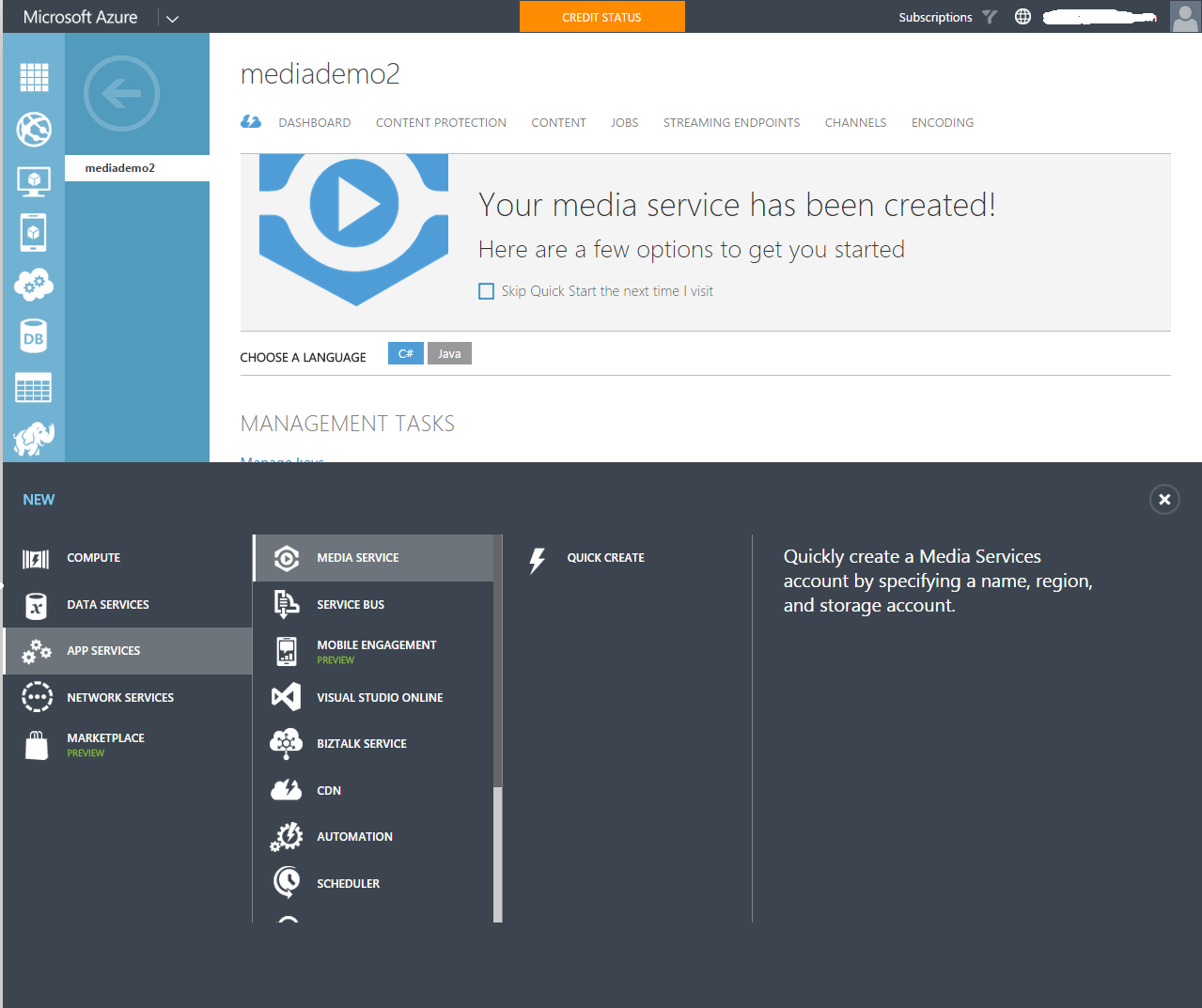
<p>Now you have to provision Azure media services services and create live channel.</p>
<ul>
    <li>Go to https://azure.microsoft.com and create account if you don&#8217;t have one. There are free trial offers available
        to play</li>
    <li>Provision Azure Media Services account
        <p>
            <div id="attachment_701" style="width: 723px" class="wp-caption alignnone">
                <a href="http://gtrifonov.com/assets/2015/07/Provision_Azure_Media_Services.png">
                    <img class=" wp-image-701" src="http://gtrifonov.com/assets/2015/07/Provision_Azure_Media_Services.png"
                        alt="Provision Azure Media Services Account" width="713" height="598" srcset="http://gtrifonov.com/assets/2015/07/Provision_Azure_Media_Services.png 1279w, http://gtrifonov.com/assets/2015/07/Provision_Azure_Media_Services-300x252.png 300w, http://gtrifonov.com/assets/2015/07/Provision_Azure_Media_Services-1024x859.png 1024w, http://gtrifonov.com/assets/2015/07/Provision_Azure_Media_Services-143x120.png 143w, http://gtrifonov.com/assets/2015/07/Provision_Azure_Media_Services-215x180.png 215w, http://gtrifonov.com/assets/2015/07/Provision_Azure_Media_Services-319x268.png 319w"
                        sizes="(max-width: 713px) 100vw, 713px" />
                </a>
                <p class="wp-caption-text">Provision Azure Media Services Account</p>
            </div>
    </li>
    <li>Create Live Channel
        <p>
            <div id="attachment_711" style="width: 737px" class="wp-caption alignnone">
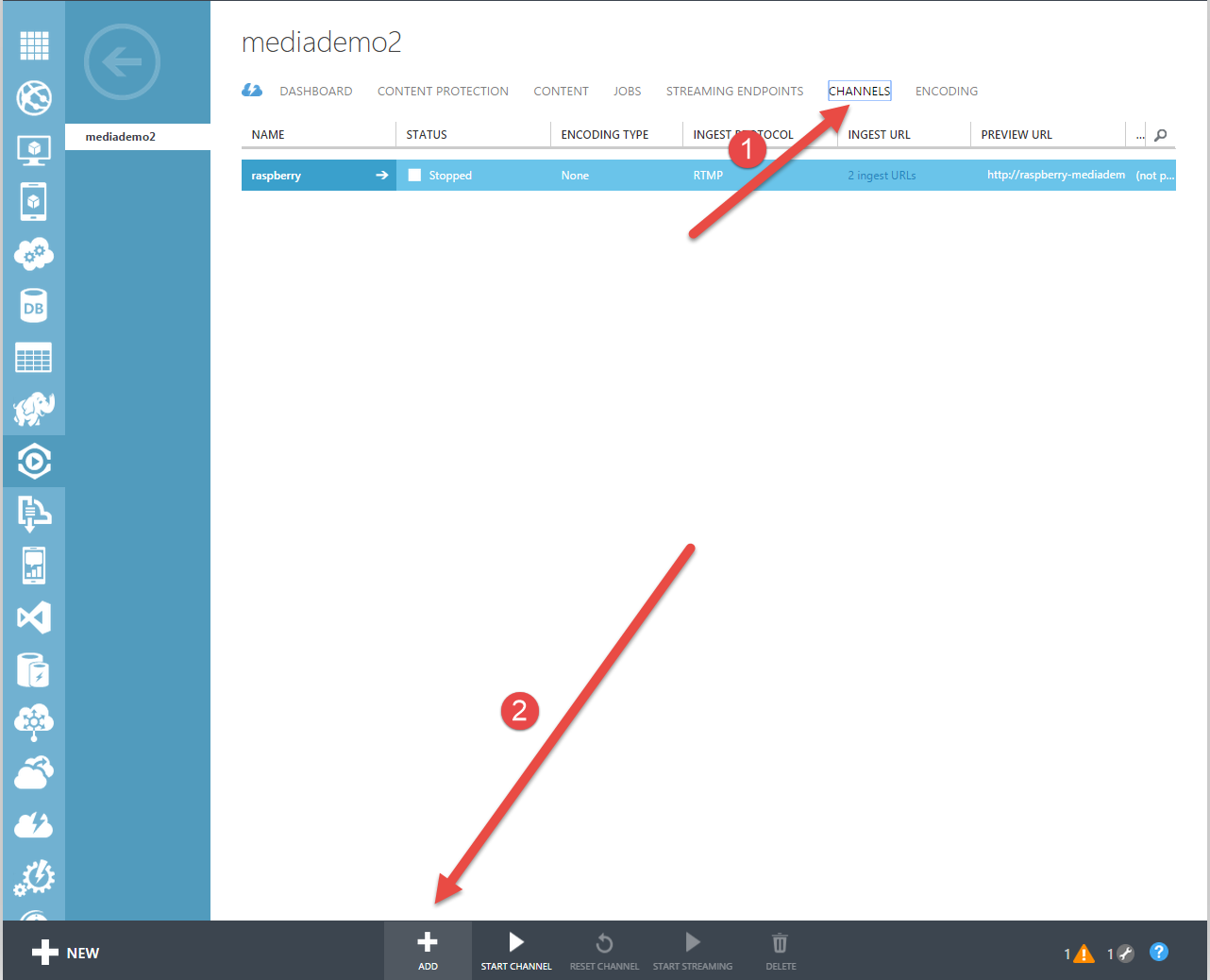
                <a href="http://gtrifonov.com/assets/2015/07/CreateAzureMediaServicesChannelForRaspberryPI.png">
                    <img class=" wp-image-711" src="http://gtrifonov.com/assets/2015/07/CreateAzureMediaServicesChannelForRaspberryPI.png"
                        alt="Create Azure Media Services Channel For RaspberryPI" width="727" height="589" srcset="http://gtrifonov.com/assets/2015/07/CreateAzureMediaServicesChannelForRaspberryPI.png 1282w, http://gtrifonov.com/assets/2015/07/CreateAzureMediaServicesChannelForRaspberryPI-300x243.png 300w, http://gtrifonov.com/assets/2015/07/CreateAzureMediaServicesChannelForRaspberryPI-1024x829.png 1024w, http://gtrifonov.com/assets/2015/07/CreateAzureMediaServicesChannelForRaspberryPI-148x120.png 148w, http://gtrifonov.com/assets/2015/07/CreateAzureMediaServicesChannelForRaspberryPI-222x180.png 222w, http://gtrifonov.com/assets/2015/07/CreateAzureMediaServicesChannelForRaspberryPI-331x268.png 331w"
                        sizes="(max-width: 727px) 100vw, 727px" />
                </a>
                <p class="wp-caption-text">Create Azure Media Services Channel For RaspberryPI</p>
            </div>
    </li>
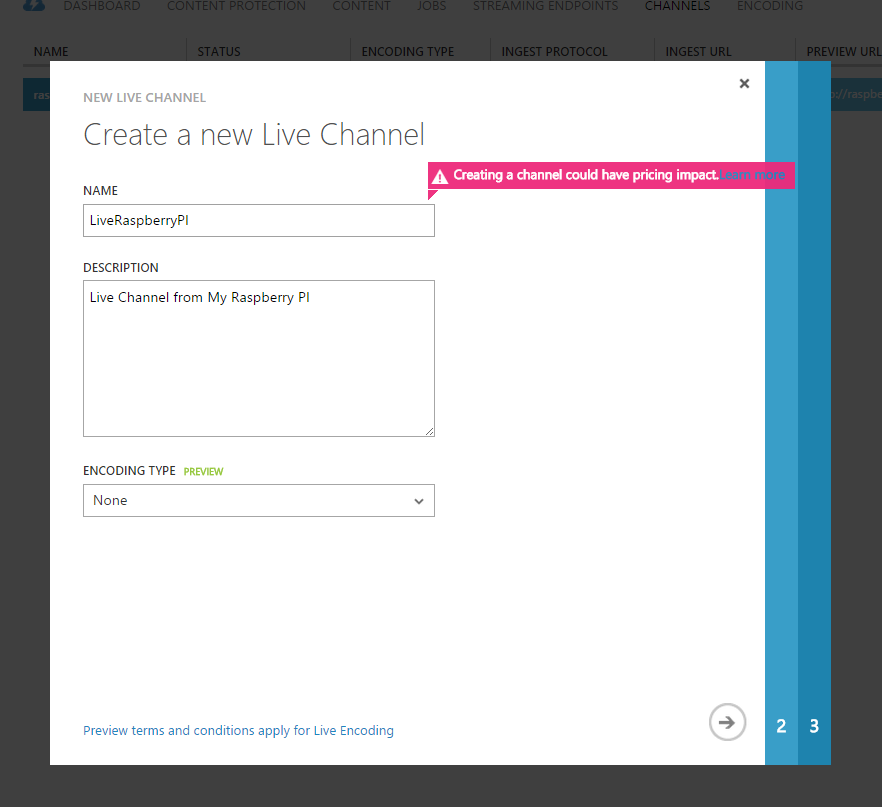
    <li>Specify Channel name and description
        <p>
            <div id="attachment_721" style="width: 656px" class="wp-caption alignnone">
                <a href="http://gtrifonov.com/assets/2015/07/AzureMediaServicesChannelProperties.png">
                    <img class=" wp-image-721" src="http://gtrifonov.com/assets/2015/07/AzureMediaServicesChannelProperties.png"
                        alt="Specify Azure Media Services Channel Proerties" width="646" height="591" srcset="http://gtrifonov.com/assets/2015/07/AzureMediaServicesChannelProperties.png 882w, http://gtrifonov.com/assets/2015/07/AzureMediaServicesChannelProperties-300x274.png 300w, http://gtrifonov.com/assets/2015/07/AzureMediaServicesChannelProperties-131x120.png 131w, http://gtrifonov.com/assets/2015/07/AzureMediaServicesChannelProperties-197x180.png 197w, http://gtrifonov.com/assets/2015/07/AzureMediaServicesChannelProperties-293x268.png 293w"
                        sizes="(max-width: 646px) 100vw, 646px" />
                </a>
                <p class="wp-caption-text">Specify Azure Media Services Channel Properties</p>
            </div>
    </li>
</ul>
<p>&nbsp;</p>
<ul>
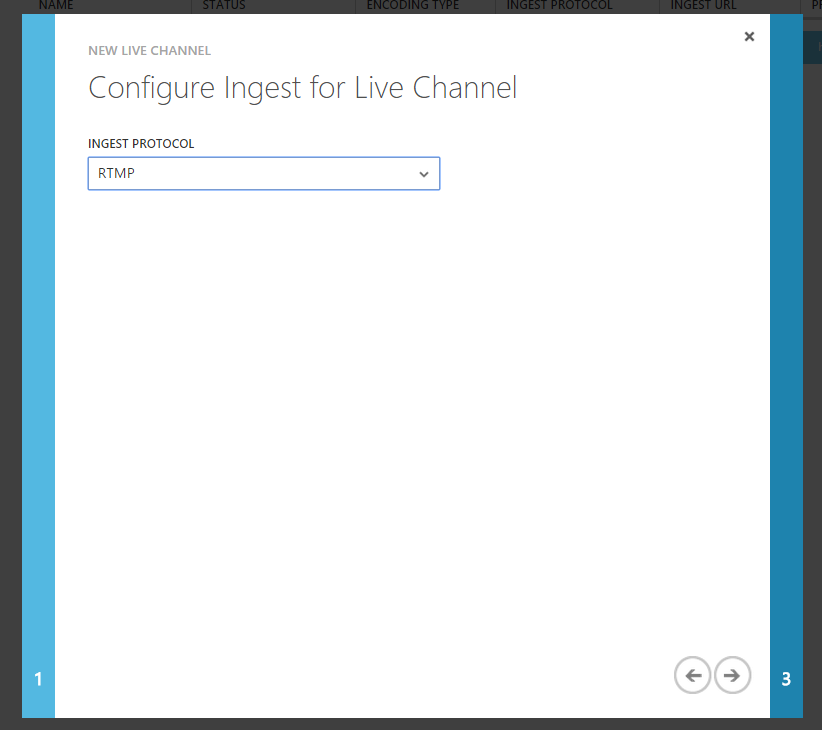
    <li>Select RTMP ingest protocol
        <br/>
        <a href="/2015/07/LiveChannelProtocol.png">
            <img class="alignnone  wp-image-731" src="http://gtrifonov.com/assets/2015/07/LiveChannelProtocol.png"
                alt="Azure Media Services Live Channel Protocol" width="557" height="495" srcset="http://gtrifonov.com/assets/2015/07/LiveChannelProtocol.png 822w, http://gtrifonov.com/assets/2015/07/LiveChannelProtocol-300x266.png 300w, http://gtrifonov.com/assets/2015/07/LiveChannelProtocol-135x120.png 135w, http://gtrifonov.com/assets/2015/07/LiveChannelProtocol-203x180.png 203w, http://gtrifonov.com/assets/2015/07/LiveChannelProtocol-302x268.png 302w"
                sizes="(max-width: 557px) 100vw, 557px" />
        </a>
    </li>
</ul>
<p>&nbsp;</p>
<ul>
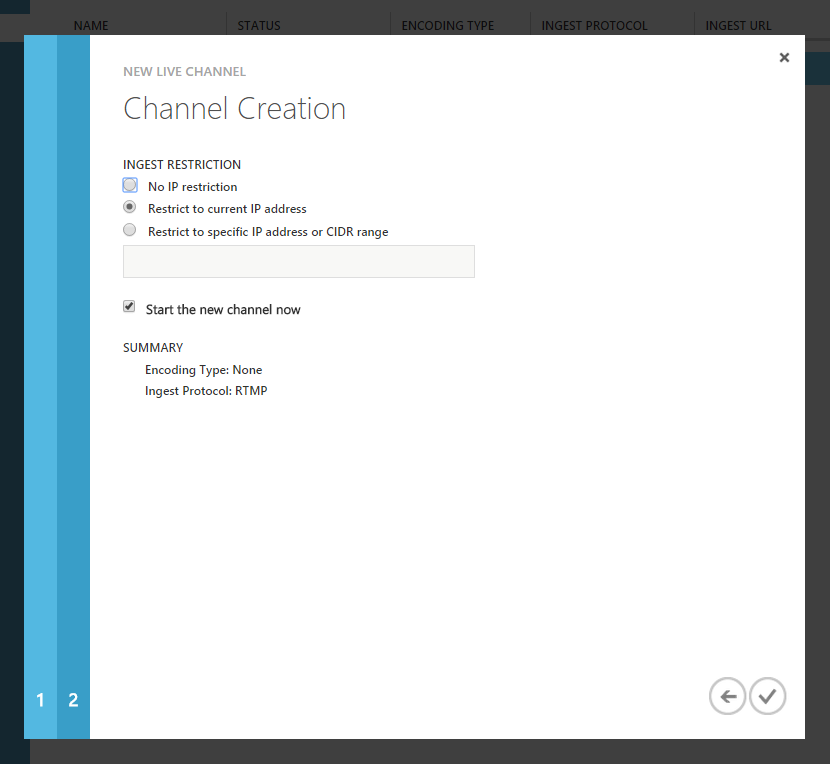
    <li>Specify ingest restrictions
        <div id="attachment_741" style="width: 560px" class="wp-caption alignnone">
            <a href="/2015/07/AzureMediaServicesChannelIngestRestrictions.png">
                <img class=" wp-image-741" src="http://gtrifonov.com/assets/2015/07/AzureMediaServicesChannelIngestRestrictions.png"
                    alt="Live channel ingest restrictions" width="550" height="506" srcset="http://gtrifonov.com/assets/2015/07/AzureMediaServicesChannelIngestRestrictions.png 830w, http://gtrifonov.com/assets/2015/07/AzureMediaServicesChannelIngestRestrictions-300x276.png 300w, http://gtrifonov.com/assets/2015/07/AzureMediaServicesChannelIngestRestrictions-130x120.png 130w, http://gtrifonov.com/assets/2015/07/AzureMediaServicesChannelIngestRestrictions-196x180.png 196w, http://gtrifonov.com/assets/2015/07/AzureMediaServicesChannelIngestRestrictions-291x268.png 291w"
                    sizes="(max-width: 550px) 100vw, 550px" />
            </a>
            <p class="wp-caption-text">Live channel ingest restrictions</p>
        </div>
        <p>
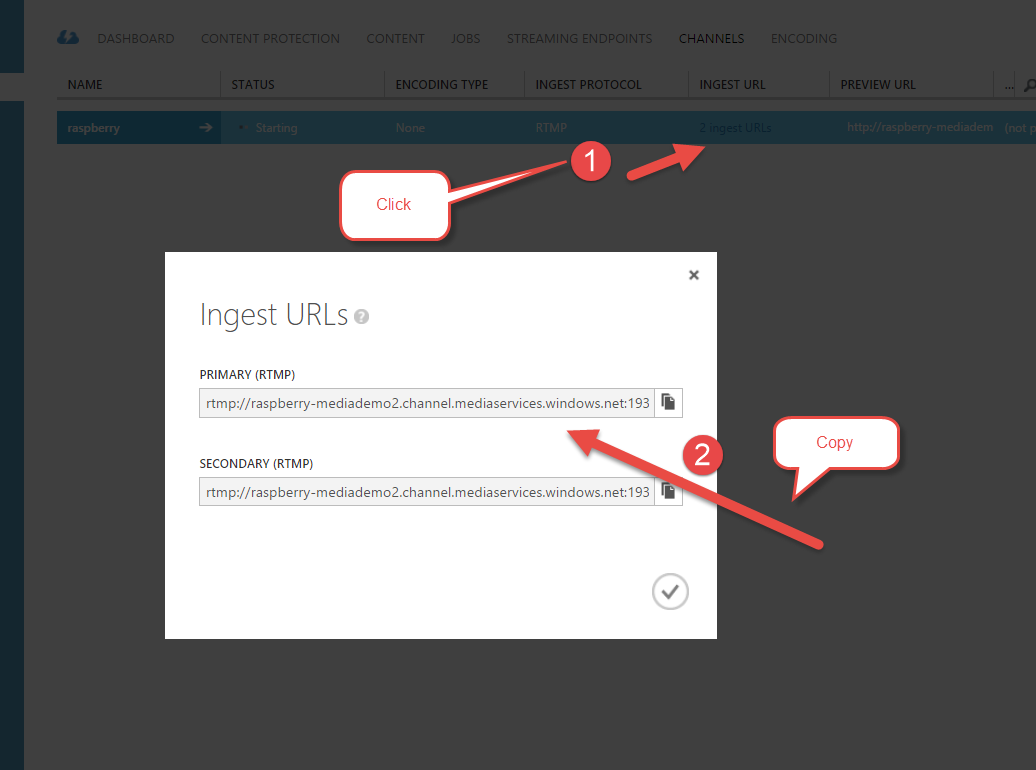
            <div id="attachment_751" style="width: 567px" class="wp-caption alignnone">
                <a href="/2015/07/CopyAzureMediaServicesIngestUrls.png">
                    <img class=" wp-image-751" src="http://gtrifonov.com/assets/2015/07/CopyAzureMediaServicesIngestUrls.png"
                        alt="Copy Live Stream Ingest Urls " width="557" height="414" srcset="http://gtrifonov.com/assets/2015/07/CopyAzureMediaServicesIngestUrls.png 1036w, http://gtrifonov.com/assets/2015/07/CopyAzureMediaServicesIngestUrls-300x223.png 300w, http://gtrifonov.com/assets/2015/07/CopyAzureMediaServicesIngestUrls-1024x761.png 1024w, http://gtrifonov.com/assets/2015/07/CopyAzureMediaServicesIngestUrls-160x120.png 160w, http://gtrifonov.com/assets/2015/07/CopyAzureMediaServicesIngestUrls-242x180.png 242w, http://gtrifonov.com/assets/2015/07/CopyAzureMediaServicesIngestUrls-360x268.png 360w"
                        sizes="(max-width: 557px) 100vw, 557px" />
                </a>
                <p class="wp-caption-text">Copy Live Stream Ingest Urls</p>
            </div>
    </li>
</ul>
<h2>Pushing live stream from Raspberry Pi to Azure Media Services live channel</h2>
<p>At this point you have all your hardware,software configured and prepared, live channel is ready to get a live stream
    from your Raspberry PI device.
    <br/> It is time to start streaming. I created a simple bash script which using ffmpeg to stream from camera.</p>
<p>
    <code><br/>
nano ~/azure_ffmpeg</code>
</p>
<p>#!/bin/bash
    <br/> modprobe bcm2835-v4l2
    <br/> INGESTURI=&#8221;Paste live channel ingest url here from Azure Media Services&#8221;
    <br/> while :
    <br/> do
    <br/> ffmpeg -framerate 30 -r 30 -s 640&#215;480 -i /dev/video0 -vcodec libx264 -preset ultrafast -acodec libfaac -ab
    48k -b:v 500k -maxrate 500k -bufsize 500k -r 30 -g 60 -keyint_min 60 -sc_threshold 0 -f flv $INGESTURI
    <br/> sleep 10
    <br/> done
</p>
<p>chmod u+x ~/azure_ffmpeg
    <br/> sudo ~/azure_ffmpeg</p>
<p>We created a script ~/azure_ffmpeg. modprobe bcm2835-v4l2 maps PI camera module as /dev/video0 device. if you are using
    usb camera then you don&#8217;t need this line.
    <br/> Then we are launching ffmpeg and telling it to stream video from /dev/video0 device to our channel with 500k bit
    rate using ultrafast preset of libx264 codec. We are also instructing to use audio codec since as of now Azure Media
    Services requires to have both video and audio to be streamed to channel.
    <br/> Once script is created and saved chmod command is used to grant script execution permissions. Finally sudo ~/azure_ffmpeg
    launching stream processing.</p>
<p>While script is running you can preview it and publish through portal. Publisher url is url you can share with world
    to watch your Raspberry PI live stream.</p>
<div id="attachment_771" style="width: 606px" class="wp-caption alignnone">
    <a href="/2015/07/PreviewAzureMediaServicesLiveChannel.png">
        <img class=" wp-image-771" src="http://gtrifonov.com/assets/2015/07/PreviewAzureMediaServicesLiveChannel.png"
            alt="Preview Azure Media Services live stream " width="596" height="549" srcset="http://gtrifonov.com/assets/2015/07/PreviewAzureMediaServicesLiveChannel.png 1108w, http://gtrifonov.com/assets/2015/07/PreviewAzureMediaServicesLiveChannel-300x276.png 300w, http://gtrifonov.com/assets/2015/07/PreviewAzureMediaServicesLiveChannel-1024x944.png 1024w, http://gtrifonov.com/assets/2015/07/PreviewAzureMediaServicesLiveChannel-130x120.png 130w, http://gtrifonov.com/assets/2015/07/PreviewAzureMediaServicesLiveChannel-195x180.png 195w, http://gtrifonov.com/assets/2015/07/PreviewAzureMediaServicesLiveChannel-291x268.png 291w"
            sizes="(max-width: 596px) 100vw, 596px" />
    </a>
    <p class="wp-caption-text">Preview Azure Media Services live stream</p>
</div>
<p>&nbsp;</p>
<p>
    <a href="/2015/07/PreviewLiveChannelWithGeorgeInOffice.png">
        <img class="alignnone  wp-image-781" src="http://gtrifonov.com/assets/2015/07/PreviewLiveChannelWithGeorgeInOffice.png"
            alt="PreviewLiveChannelWithGeorgeInOffice" width="615" height="473" srcset="http://gtrifonov.com/assets/2015/07/PreviewLiveChannelWithGeorgeInOffice.png 1364w, http://gtrifonov.com/assets/2015/07/PreviewLiveChannelWithGeorgeInOffice-300x231.png 300w, http://gtrifonov.com/assets/2015/07/PreviewLiveChannelWithGeorgeInOffice-1024x788.png 1024w, http://gtrifonov.com/assets/2015/07/PreviewLiveChannelWithGeorgeInOffice-156x120.png 156w, http://gtrifonov.com/assets/2015/07/PreviewLiveChannelWithGeorgeInOffice-234x180.png 234w, http://gtrifonov.com/assets/2015/07/PreviewLiveChannelWithGeorgeInOffice-348x268.png 348w"
            sizes="(max-width: 615px) 100vw, 615px" />
    </a>
</p>
<h2>What next</h2>
<p>In this article i showed you how you can use portal to configure and start live channel. My next steps will be create
    scripts, so i can manage live channels though raspberry PI itself. So stay tuned.</p>]]></content><author><name></name></author><summary type="html"><![CDATA[Few weeks ago I bought raspberry PI 2 Model B to my elder kid to encourage him to program something and start hacking. And as it often happens I also started to explore new toy and its capabilities. Since I am working in Azure Media services as developer, first project I actually started to implement myself is building security camera which will stream live video through Azure Media Services. I can look what&#8217;s happening around my house from work or from any place where I have access to internet. Looking into device specs and browsing similar projects I concluded that I should be able to archive my goals relatively fast and I started with hacking. Hardware Raspberry PI 2 Model B SD Card 16 GB Microsoft LifeCam 6000/ Raspberry PI Camera module USB wifi adapter if you don&#8217;t have wired Ethernet connection Keyboard (optional) Mouse(optional) Monitor(optional) You don&#8217;t actually need to plugin monitor, keyboard , mouse if you planning to access your PI from your computer via SSH. You can use either a usb camera or Raspberry PI Camera module. You should get better results with Raspberry PI Camera module since it has a dedicated bus with better throughput compare to usb connection. Configuring required software Installing Ubuntu Mate I decided to install Ubuntu Mate instead of Raspbian based on minimal requirements of Mate in order to have full desktop experience for my kids and potentially wider variety of GUI tools. Ubuntu Mate has image optimized for PI.Since I used Ubuntu once a while,I decide to make it my default OS for Raspberry PI . Minimum requirements from Ubuntu Mate web site: Pentium III 750-megahertz 512 megabytes (MB) of RAM 8 gigabytes (GB) of available space on the hard disk Bootable DVD-ROM drive Keyboard and Mouse (or other pointing device)Video adapter and monitor with 1024 x 768 or higher resolution Sound card Speakers or headphones &nbsp; Raspberry PI Specs: A 900MHz quad-core ARM Cortex-A7 CPU 1GB RAM 4 USB ports 40 GPIO pins Full HDMI port Ethernet port Combined 3.5mm audio jack and composite video Camera interface (CSI) Display interface (DSI) Micro SD card slot VideoCore IV 3D graphics core &nbsp; To write iso image to sd card in Windows simply follow instructions from https://www.raspberrypi.org/documentation/installation/installing-images/windows.md. Once OS installed you need to configure SSH for remote access, Wifi and make sure that you able to browse internet. Enabling RaspberryPi camera module in Ubuntu Mate modifyfile /boot/firmware/config.txt sudo nano /boot/firmware/config.txt Just add a line &#8220;start_x=1&#8221; at the bottom of the file config.txt, save it, and reboot the system. Try command &#8220;sudo raspistill -o test.jpg&#8221; to see if it is working Installing FFMPEG FFMPEG is powerful tool to work with video and able to encode and push encoded video to live stream channels. I found and follow instructions from Jeff Thomson blog post which explains how to build ffmpeg for ARM processor and have hardware acceleration turned on. By defaults you will not have hardware acceleration if you will download precompiled binaries from ffmpeg site. So you need to get source code and compile it for Raspberry PI. Here is a summary of steps you need to perform: Install build tools sudo apt-get install makeinfo texinfo texi2html automake Compile amd install H264 libraries: cd /usr/src git clone git://git.videolan.org/x264 cd x264 ./configure --host=arm-unknown-linux-gnueabi --enable-static --disable-opencl sudo make sudo make install Compile amd install FFMPEG: git clone git://source.ffmpeg.org/ffmpeg.git cd ffmpeg sudo ./configure --arch=armel --target-os=linux --enable-gpl --enable-libx264 --enable-nonfree sudo make sudo make install Testing ffmpeg and Camera module: Once you have all software &nbsp; Configuring Live channel In Azure Media Services Now you have to provision Azure media services services and create live channel. Go to https://azure.microsoft.com and create account if you don&#8217;t have one. There are free trial offers available to play Provision Azure Media Services account Provision Azure Media Services Account Create Live Channel Create Azure Media Services Channel For RaspberryPI Specify Channel name and description Specify Azure Media Services Channel Properties &nbsp; Select RTMP ingest protocol &nbsp; Specify ingest restrictions Live channel ingest restrictions Copy Live Stream Ingest Urls Pushing live stream from Raspberry Pi to Azure Media Services live channel At this point you have all your hardware,software configured and prepared, live channel is ready to get a live stream from your Raspberry PI device. It is time to start streaming. I created a simple bash script which using ffmpeg to stream from camera. nano ~/azure_ffmpeg #!/bin/bash modprobe bcm2835-v4l2 INGESTURI=&#8221;Paste live channel ingest url here from Azure Media Services&#8221; while : do ffmpeg -framerate 30 -r 30 -s 640&#215;480 -i /dev/video0 -vcodec libx264 -preset ultrafast -acodec libfaac -ab 48k -b:v 500k -maxrate 500k -bufsize 500k -r 30 -g 60 -keyint_min 60 -sc_threshold 0 -f flv $INGESTURI sleep 10 done chmod u+x ~/azure_ffmpeg sudo ~/azure_ffmpeg We created a script ~/azure_ffmpeg. modprobe bcm2835-v4l2 maps PI camera module as /dev/video0 device. if you are using usb camera then you don&#8217;t need this line. Then we are launching ffmpeg and telling it to stream video from /dev/video0 device to our channel with 500k bit rate using ultrafast preset of libx264 codec. We are also instructing to use audio codec since as of now Azure Media Services requires to have both video and audio to be streamed to channel. Once script is created and saved chmod command is used to grant script execution permissions. Finally sudo ~/azure_ffmpeg launching stream processing. While script is running you can preview it and publish through portal. Publisher url is url you can share with world to watch your Raspberry PI live stream. Preview Azure Media Services live stream &nbsp; What next In this article i showed you how you can use portal to configure and start live channel. My next steps will be create scripts, so i can manage live channels though raspberry PI itself. So stay tuned.]]></summary></entry><entry><title type="html">When you overgrow your RaspberryPi sd card - How to clone SD card and re-size root partition</title><link href="http://gtrifonov.com/2015/06/30/when-you-overgrow-your-raspberrypi-sd-card-how-to-clone-sd-card-and-re-size-root-partition/index.html" rel="alternate" type="text/html" title="When you overgrow your RaspberryPi sd card - How to clone SD card and re-size root partition" /><published>2015-06-30T00:00:00+00:00</published><updated>2015-06-30T00:00:00+00:00</updated><id>http://gtrifonov.com/2015/06/30/when-you-overgrow-your-raspberrypi-sd-card-how-to-clone-sd-card-and-re-size-root-partition/when-you-overgrow-your-raspberrypi-sd-card-how-to-clone-sd-card-and-re-size-root-partition</id><content type="html" xml:base="http://gtrifonov.com/2015/06/30/when-you-overgrow-your-raspberrypi-sd-card-how-to-clone-sd-card-and-re-size-root-partition/index.html"><![CDATA[<p>After Raspberry PI arrived and you spent few weeks experimenting you start realizing that you run out of space in your sd card. Especially it is true when you use some sd card which was laying around and you was happy to save 10$. Now you constantly getting out of space messages trying to install some new package.</p>
<h2>How to move RaspberryPi to bigger SD card ?</h2>
<h3>Cloning SD card</h3>
<ol>
<li>Shut down Pi ansd remove original  sd card</li>
<li>Download and install Win32DiskImager from http://sourceforge.net/projects/win32diskimager/</li>
<li>Insert existing original  SD card to card reader</li>
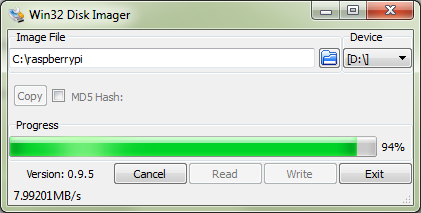
<li>Run Win32Disk Manager and specify from which disk to clone and to what image file to save. Click &#8220;Read&#8221;<br/>
<a href="http://gtrifonov.com/assets/2015/06/win32DiskManager.png"><img class="alignnone size-full wp-image-551" src="http://gtrifonov.com/assets/2015/06/win32DiskManager.png" alt="win32DiskManager" width="421" height="213" srcset="http://gtrifonov.com/assets/2015/06/win32DiskManager.png 421w, http://gtrifonov.com/assets/2015/06/win32DiskManager-300x152.png 300w, http://gtrifonov.com/assets/2015/06/win32DiskManager-160x81.png 160w, http://gtrifonov.com/assets/2015/06/win32DiskManager-260x132.png 260w, http://gtrifonov.com/assets/2015/06/win32DiskManager-360x182.png 360w" sizes="(max-width: 421px) 100vw, 421px"/></a></li>
<li>Remove original SD card to card reader</li>
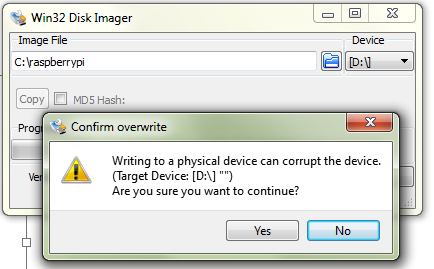
<li>Insert new SD card to card reader and click &#8220;Write&#8221;.Confirm that to you want to continue.<br/>
<a href="http://gtrifonov.com/assets/2015/06/win32DiskManagerWrite1.png"><img class="alignnone size-full wp-image-571" src="http://gtrifonov.com/assets/2015/06/win32DiskManagerWrite1.png" alt="win32DiskManagerWrite" width="434" height="269" srcset="http://gtrifonov.com/assets/2015/06/win32DiskManagerWrite1.png 434w, http://gtrifonov.com/assets/2015/06/win32DiskManagerWrite1-300x186.png 300w, http://gtrifonov.com/assets/2015/06/win32DiskManagerWrite1-160x99.png 160w, http://gtrifonov.com/assets/2015/06/win32DiskManagerWrite1-260x161.png 260w, http://gtrifonov.com/assets/2015/06/win32DiskManagerWrite1-360x223.png 360w" sizes="(max-width: 434px) 100vw, 434px"/></a></li>
</ol>
<h3>Resizing partition</h3>
<p>To re-size partitions i followed steps from http://raspberrypi.stackexchange.com/questions/499/how-can-i-resize-my-root-partition.</p>
<ol>
<li>Type <code>sudo fdisk /dev/mmcblk0</code> and you will see list of partions</li>
<li>Delete root partition &#8211; type <code>d</code> to delete a partition. Enter partition number 2</li>
<li>Create new partition &#8211; type <code>n</code> to create a partition. Enter <code>p</code> to define it as primary .Specify partition number: 2</li>
<li>You will be prompted to specify start number of partition. select default value which should be equal to value from original list printed in first step</li>
<li>Type <code>w</code> to save changes</li>
<li>Reboot <code>sudo reboot</code></li>
<li>Resize partition <code>sudo resize2fs /dev/mmcblk0p2</code></li>
</ol>]]></content><author><name></name></author><summary type="html"><![CDATA[After Raspberry PI arrived and you spent few weeks experimenting you start realizing that you run out of space in your sd card. Especially it is true when you use some sd card which was laying around and you was happy to save 10$. Now you constantly getting out of space messages trying to install some new package. How to move RaspberryPi to bigger SD card ? Cloning SD card Shut down Pi ansd remove original  sd card Download and install Win32DiskImager from http://sourceforge.net/projects/win32diskimager/ Insert existing original  SD card to card reader Run Win32Disk Manager and specify from which disk to clone and to what image file to save. Click &#8220;Read&#8221; Remove original SD card to card reader Insert new SD card to card reader and click &#8220;Write&#8221;.Confirm that to you want to continue. Resizing partition To re-size partitions i followed steps from http://raspberrypi.stackexchange.com/questions/499/how-can-i-resize-my-root-partition. Type sudo fdisk /dev/mmcblk0 and you will see list of partions Delete root partition &#8211; type d to delete a partition. Enter partition number 2 Create new partition &#8211; type n to create a partition. Enter p to define it as primary .Specify partition number: 2 You will be prompted to specify start number of partition. select default value which should be equal to value from original list printed in first step Type w to save changes Reboot sudo reboot Resize partition sudo resize2fs /dev/mmcblk0p2]]></summary></entry><entry><title type="html">Using Json Web Keys from OpenID Connect discovery spec to work with JWT token authentication in Azure Media Services</title><link href="http://gtrifonov.com/2015/06/07/using-json-web-keys-from-openid-connect-discovery-spec-to-work-with-jwt-token-authentication-in-azure-media-services/index.html" rel="alternate" type="text/html" title="Using Json Web Keys from OpenID Connect discovery spec to work with JWT token authentication in Azure Media Services" /><published>2015-06-07T00:00:00+00:00</published><updated>2015-06-07T00:00:00+00:00</updated><id>http://gtrifonov.com/2015/06/07/using-json-web-keys-from-openid-connect-discovery-spec-to-work-with-jwt-token-authentication-in-azure-media-services/using-json-web-keys-from-openid-connect-discovery-spec-to-work-with-jwt-token-authentication-in-azure-media-services</id><content type="html" xml:base="http://gtrifonov.com/2015/06/07/using-json-web-keys-from-openid-connect-discovery-spec-to-work-with-jwt-token-authentication-in-azure-media-services/index.html"><![CDATA[<p>In my recent blogs post <a href="http://gtrifonov.com/2015/01/24/mvc-owin-azure-media-services-ad-integration/">&#8220;Integrate Azure Media Services OWIN MVC based app with Azure Active Directory …&#8221;</a> I described how you can utilize JWT token issued by Azure Active directory and provide group based permissions to watch videos hosted in Azure Media Services.<br/>
Sample from blog post was mentioning that Azure Active Directory have signing certificate rotation logic and developers need to detect this rotation and update public keys stored in Media Services in order to have JWT token signature verification to be working.</p>
<p>In latest <a href="https://www.nuget.org/packages/windowsazure.mediaservices/3.3.0" onclick="__gaTracker('send', 'event', 'outbound-article', 'https://www.nuget.org/packages/windowsazure.mediaservices/3.3.0', '3.3.0.0 release');">3.3.0.0 release</a> Azure Media Services team added functionality to support OpenId Connect discovery spec and avoid problem with keys expiration due to rolling logic on identity provider side.<br/>
If you are using identity provider which is exposing OpenID connect discovery document (and majority of providers such as Azure Active Directory, Google, Salesforce does), you can instruct Azure Media services  obtain signing keys for validation of JWT token from OpenID connect discovery spec. </p>
<h2>OpenID Connect Discovery Spec and Json Web Keys (JWK)</h2>
<p>OpenID Connect Discovery Spec defines how clients dynamically discover information about OpenID provider. It is JSON document published by provider and contains metadata information about how user system can interact with identity provider.</p>
<p>Here you can find example of discovery doc exposed by Azure Active Directory.<br/>
<script src="https://gist.github.com/gtrifonov/a054fe1bc895576eadcf.js"></script></p>
<p>As you can see document has pointer to a resource where you can obtain JSON Web Keys (https://tools.ietf.org/html/draft-ietf-jose-json-web-key-41.).<br/>
<code>"jwks_uri":"https://login.windows.net/common/discovery/keys",</code></p>
<p>A JSON Web Key (JWK) document has collection of signing public keys used by Identity provider which you can use to verify JWT token signature.</p>
<p>Example of Azure Active Directory signing keys in Json Web Keys fromat:<br/>
https://login.windows.net/common/.well-known/openid-configuration</p>
<p><script src="https://gist.github.com/gtrifonov/4e10bd2fcda51f86ee99.js"></script></p>
<p>Example of Google Json Web Keys.https://accounts.google.com/.well-known/openid-configuration<br/>
<script src="https://gist.github.com/gtrifonov/d0081768520805ac35e9.js"></script></p>
<h2>Using OpenId Connect Discovery Spec together with Azure Media Services JWT token verification</h2>
<p>Since Open ID Connect spec has all information regarding signing keys used to sign JWT token you don&#8217;t need anymore persist these signing keys in Azure Media Services. All you need to do is instruct Azure Media key delivery service is to use defined openid connect specification during JWT token validation.</p>
<p>Here is a modified code snippet from Azure AD integration example to create Authorization policy and instruct to use OpenId Connect spec for token validation.</p>
<p><script src="https://gist.github.com/gtrifonov/094fb77e905133c8589c.js"></script></p>
<p>You can see example changes in <a href="https://github.com/AzureMediaServicesSamples/Key-delivery-with-AAD-integration/commit/826f6732bf6e4d3613040c51cafccca6fd1963b9" onclick="__gaTracker('send', 'event', 'outbound-article', 'https://github.com/AzureMediaServicesSamples/Key-delivery-with-AAD-integration/commit/826f6732bf6e4d3613040c51cafccca6fd1963b9', 'following commit ');">following commit </a></p>
<div style="float: right; margin-left: 10px;"><a href="http://twitter.com/share?url=http://gtrifonov.com/2015/06/07/using-json-web-keys-from-openid-connect-discovery-spec-to-work-with-jwt-token-authentication-in-azure-media-services/&amp;via=&amp;text=Using Json Web Keys from OpenID Connect discovery spec to work with JWT token authentication in Azure Media Services&amp;related=:&amp;lang=en&amp;count=horizontal" onclick="__gaTracker('send', 'event', 'outbound-article', 'http://twitter.com/share?url=http://gtrifonov.com/2015/06/07/using-json-web-keys-from-openid-connect-discovery-spec-to-work-with-jwt-token-authentication-in-azure-media-services/&amp;via=&amp;text=Using Json Web Keys from OpenID Connect discovery spec to work with JWT token authentication in Azure Media Services&amp;related=:&amp;lang=en&amp;count=horizontal', 'Tweet');" class="twitter-share-button">Tweet</a><script type="text/javascript" src="/http://platform.twitter.com/widgets.js"></script></div>]]></content><author><name></name></author><summary type="html"><![CDATA[In my recent blogs post &#8220;Integrate Azure Media Services OWIN MVC based app with Azure Active Directory …&#8221; I described how you can utilize JWT token issued by Azure Active directory and provide group based permissions to watch videos hosted in Azure Media Services. Sample from blog post was mentioning that Azure Active Directory have signing certificate rotation logic and developers need to detect this rotation and update public keys stored in Media Services in order to have JWT token signature verification to be working. In latest 3.3.0.0 release Azure Media Services team added functionality to support OpenId Connect discovery spec and avoid problem with keys expiration due to rolling logic on identity provider side. If you are using identity provider which is exposing OpenID connect discovery document (and majority of providers such as Azure Active Directory, Google, Salesforce does), you can instruct Azure Media services obtain signing keys for validation of JWT token from OpenID connect discovery spec. OpenID Connect Discovery Spec and Json Web Keys (JWK) OpenID Connect Discovery Spec defines how clients dynamically discover information about OpenID provider. It is JSON document published by provider and contains metadata information about how user system can interact with identity provider. Here you can find example of discovery doc exposed by Azure Active Directory. As you can see document has pointer to a resource where you can obtain JSON Web Keys (https://tools.ietf.org/html/draft-ietf-jose-json-web-key-41.). "jwks_uri":"https://login.windows.net/common/discovery/keys", A JSON Web Key (JWK) document has collection of signing public keys used by Identity provider which you can use to verify JWT token signature. Example of Azure Active Directory signing keys in Json Web Keys fromat: https://login.windows.net/common/.well-known/openid-configuration Example of Google Json Web Keys.https://accounts.google.com/.well-known/openid-configuration Using OpenId Connect Discovery Spec together with Azure Media Services JWT token verification Since Open ID Connect spec has all information regarding signing keys used to sign JWT token you don&#8217;t need anymore persist these signing keys in Azure Media Services. All you need to do is instruct Azure Media key delivery service is to use defined openid connect specification during JWT token validation. Here is a modified code snippet from Azure AD integration example to create Authorization policy and instruct to use OpenId Connect spec for token validation. You can see example changes in following commit Tweet]]></summary></entry><entry><title type="html">Azure Media Services 3.2.0.0 and JWT related changes in Azure AD integration sample</title><link href="http://gtrifonov.com/2015/04/22/azure-media-services-3-2-0-0-and-jwt-related-changes-in-azure-ad-integration-sample/index.html" rel="alternate" type="text/html" title="Azure Media Services 3.2.0.0 and JWT related changes in Azure AD integration sample" /><published>2015-04-22T00:00:00+00:00</published><updated>2015-04-22T00:00:00+00:00</updated><id>http://gtrifonov.com/2015/04/22/azure-media-services-3-2-0-0-and-jwt-related-changes-in-azure-ad-integration-sample/azure-media-services-3-2-0-0-and-jwt-related-changes-in-azure-ad-integration-sample</id><content type="html" xml:base="http://gtrifonov.com/2015/04/22/azure-media-services-3-2-0-0-and-jwt-related-changes-in-azure-ad-integration-sample/index.html"><![CDATA[<p>In last post i showed<a href="http://gtrifonov.azurewebsites.net/2015/01/24/mvc-owin-azure-media-services-ad-integration/" onclick="__gaTracker('send', 'event', 'outbound-article', 'http://gtrifonov.azurewebsites.net/2015/01/24/mvc-owin-azure-media-services-ad-integration/', ' how you can integrate Azure Media Services Key Delivery service functionality with JWT token obtained from Azure Active Directory');" title="Integrate Azure Media Services OWIN MVC based app with Azure Active Directory and restrict content key delivery based on JWT claims"> how you can integrate Azure Media Services Key Delivery service functionality with JWT token obtained from Azure Active Directory</a>.Sample code mentioned in article located in <a title="https://github.com/AzureMediaServicesSamples/Key-delivery-with-AAD-integration " href="Key-delivery-with-AAD-integration">Key-delivery-with-AAD-integration</a> repository. In previous version of sample i used JWT token acquired to communicate with Azure Graph API and pass it to Key Delivery service .</p>
<p>Based on received feedback example has been updated to use JWT token issued to your web application instead . It is done because you have control to configure that group claims will be present in JWT token. Also you might not have a requirements to talk with Azure Graph API in your app. Azure is planing to remove group claims from JWT token issued for Azure Graph API.</p>
<p>You should not rely on group claims existence in JWT token issued for Azure Graph API if you want to use key delivery token auth based on group claims. You should use JWT token received as part of user authentication process for your app.<br/>
Updated OWIN Auth configuration<br/>
<script src="https://gist.github.com/gtrifonov/195c30784618ec3c2367.js"></script></p>
<p>Also Azure Media Services SDK 3.2.0.0 has been changed to loose contact restriction and allow TokenRestrictionTemplate.Issuer and TokenRestrictionTemplate.Audience to be a string instead of URI type. JWT token obtained from Azure AD during user sign in process has string representation of GUID in Audience claim. In JWT token scenario Media services SDK allows to specify Issuer and Audience as string of any format. For SWT token scenario it should be string representation of absolute Uri.</p>
<p><strong>Please note</strong> that  TokenRestrictionTemplate.Issuer and TokenRestrictionTemplate.Audience type changes in 3.2.0.0 SDK <strong>is breaking change</strong>  and you have to update TokenRestrictionTemplate related code once you upgraded to 3.2.0.0 version.</p>
<p>Also if you implement group based token authentication following my previous version of sample you have to change your code according to updated  <a href="https://github.com/AzureMediaServicesSamples/Key-delivery-with-AAD-integration" onclick="__gaTracker('send', 'event', 'outbound-article', 'https://github.com/AzureMediaServicesSamples/Key-delivery-with-AAD-integration', 'https://github.com/AzureMediaServicesSamples/Key-delivery-with-AAD-integration');">https://github.com/AzureMediaServicesSamples/Key-delivery-with-AAD-integration</a> repo in order to have your solution continue to work .</p>
<div style="float: right; margin-left: 10px;"><a href="http://twitter.com/share?url=http://gtrifonov.com/2015/04/22/azure-media-services-3.2.0.0-and-jwt-related-changes-in-azure-ad-integration-sample/&amp;via=&amp;text=Azure Media Services 3.2.0.0 and JWT related changes in Azure AD integration sample&amp;related=:&amp;lang=en&amp;count=horizontal" onclick="__gaTracker('send', 'event', 'outbound-article', 'http://twitter.com/share?url=http://gtrifonov.com/2015/04/22/azure-media-services-3.2.0.0-and-jwt-related-changes-in-azure-ad-integration-sample/&amp;via=&amp;text=Azure Media Services 3.2.0.0 and JWT related changes in Azure AD integration sample&amp;related=:&amp;lang=en&amp;count=horizontal', 'Tweet');" class="twitter-share-button">Tweet</a><script type="text/javascript" src="/http://platform.twitter.com/widgets.js"></script></div>]]></content><author><name></name></author><summary type="html"><![CDATA[In last post i showed how you can integrate Azure Media Services Key Delivery service functionality with JWT token obtained from Azure Active Directory.Sample code mentioned in article located in Key-delivery-with-AAD-integration repository. In previous version of sample i used JWT token acquired to communicate with Azure Graph API and pass it to Key Delivery service . Based on received feedback example has been updated to use JWT token issued to your web application instead . It is done because you have control to configure that group claims will be present in JWT token. Also you might not have a requirements to talk with Azure Graph API in your app. Azure is planing to remove group claims from JWT token issued for Azure Graph API. You should not rely on group claims existence in JWT token issued for Azure Graph API if you want to use key delivery token auth based on group claims. You should use JWT token received as part of user authentication process for your app. Updated OWIN Auth configuration Also Azure Media Services SDK 3.2.0.0 has been changed to loose contact restriction and allow TokenRestrictionTemplate.Issuer and TokenRestrictionTemplate.Audience to be a string instead of URI type. JWT token obtained from Azure AD during user sign in process has string representation of GUID in Audience claim. In JWT token scenario Media services SDK allows to specify Issuer and Audience as string of any format. For SWT token scenario it should be string representation of absolute Uri. Please note that  TokenRestrictionTemplate.Issuer and TokenRestrictionTemplate.Audience type changes in 3.2.0.0 SDK is breaking change  and you have to update TokenRestrictionTemplate related code once you upgraded to 3.2.0.0 version. Also if you implement group based token authentication following my previous version of sample you have to change your code according to updated  https://github.com/AzureMediaServicesSamples/Key-delivery-with-AAD-integration repo in order to have your solution continue to work . Tweet]]></summary></entry></feed>